
SEO Content Calendar Template for Google Sheets (Free + Workflow)

Most content calendars die because they try to do too much. A useful SEO content calendar template lives inside a Google Sheets editorial calendar you actually open every Monday, with only the columns that move a post from idea to published: target query, intent, owner, status, and publish date. Everything else is decoration that turns a shared spreadsheet into a graveyard by week three.
Table of contents
- Key takeaways
- What should an SEO content calendar actually track?
- How to set up the columns and tabs in Google Sheets
- A repeatable weekly workflow for planning, drafting, and publishing
- How to connect the calendar to briefs, drafts, and publishing
- Common mistakes that turn a content calendar into a graveyard
- Frequently asked questions
- Sources: Google Sheets API documentation (https://developers.google.com/sheets/api), Backlinko content calendar guide (https://backlinko.com/hub/seo/content-calendar), and Strategyc editorial calendar template (https://strategyc.com/content-calendar-template).
Key takeaways
- An editorial calendar in Google Sheets earns its keep when each row carries one target query, the search intent behind it, an owner, a status, and a publish date — nothing more.
- Two tabs are usually enough: a master "Pipeline" sheet and a per-post "Briefs" sheet, with a single lookup column linking them.
- A weekly workflow that survives a quarter is shorter than the one that survives a week: one planning slot, one writing slot, one review slot, and one publishing slot.
- Connecting the calendar to briefs and drafts matters more than fancy conditional formatting — every column that does not change a decision is a column that wastes a row.
- The graveyard starts when status columns multiply, owners disappear, and posts stay in "Drafting" for three months. One column, one owner, one date per post prevents most of it.
What should an SEO content calendar actually track?
A content planning spreadsheet should track only the decisions that move it forward: what query each post is for, who owns it, what stage it is in, and when it goes live. Anything that does not change a decision — mood boards, emoji mood meters, traffic estimates from before the post exists — adds columns no one reads and turns the sheet into a museum by month two.
The five fields that earn a column are the ones used in every planning meeting:
- Target query. One search the post has to win, written the way a real person types it. This is the column a draft is judged against.
- Search intent. Informational, commercial, or transactional. Intent decides the shape of the post and which supporting terms belong in the outline.
- Owner. One name, not a team. A row with two owners is a row that gets ignored by both.
- Status. Drafting, in review, scheduled, published. Four states is the maximum; seven is where calendars start dying.
- Publish date. A real day, not "Q2". The date is what surfaces the post in next week's view.
A working SEO content plan is the document that supplies those five columns — query, intent, outline, metadata, and publish date — before the first draft is written, which is what makes the calendar a calendar and not a wish list.
How to set up the columns and tabs in Google Sheets
Start with one tab called Pipeline. Add a header row, freeze it, and put the five core columns in this order: Target Query, Intent, Owner, Status, Publish Date. Adding anything else before the team has run two weekly cycles through these five is how calendars bloat.
Below the core five, a few supporting columns earn their place when the workflow actually uses them:
- Primary keyword variant — a second phrasing of the target query for briefs and meta titles.
- Funnel stage — top, middle, or bottom. Helps when a monthly review asks whether too much sits in one stage.
- Format — guide, comparison, listicle, tutorial. One word, no sub-categories.
- Internal link target — the existing page the new post should point at. One URL, not a list.
- Notes — the last column, never the first, and never used as a status substitute.
For most small teams one tab is enough. When briefs grow long enough to clutter Pipeline, add a second tab called Briefs, with one row per post and the same Post ID column that appears in Pipeline. A simple =VLOOKUP or =XLOOKUP from the Post ID in Pipeline pulls the brief into view next to the row, which keeps both sheets short.
A light validation pass beats heavy conditional formatting. A dropdown for Status (Drafting / In Review / Scheduled / Published), a dropdown for Intent (Informational / Commercial / Transactional), and a date validation on Publish Date are usually the only rules a small team needs. The Google Sheets API quickstart describes how to script additions to those dropdowns when a team outgrows manual entry, but for a one-to-five-person marketing team the built-in Data Validation menu is plenty.
A repeatable weekly workflow for planning, drafting, and publishing
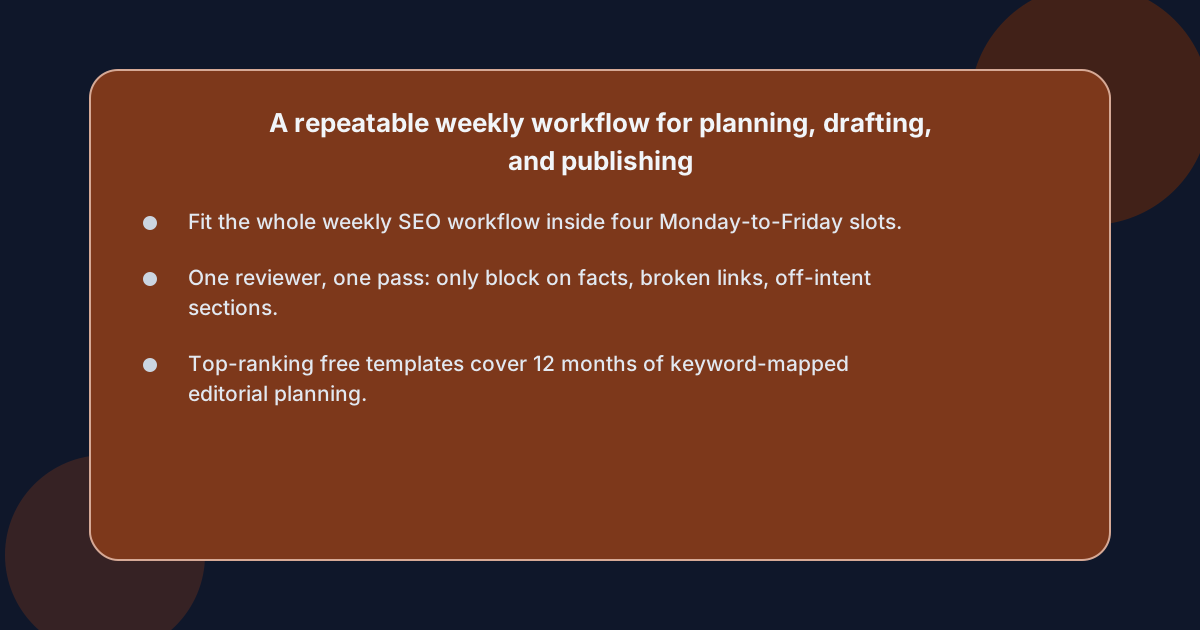 A workflow that survives a quarter fits inside a single Monday. Anything longer stops being a workflow and becomes a project plan no one runs.
The minimum viable week has four slots:
- Monday planning (30 minutes). Pull the next two weeks of Pipeline into view, confirm the target query and intent on every row, and flag any post still missing an owner. Empty owners are the first sign the calendar is dying.
- Tuesday and Wednesday drafting. Writers work against the brief for the next post in line, not against a topic. A draft without a target query is a draft no one can review.
- Thursday review. One reviewer, one pass, comments only on what would block publishing: factual errors, broken internal links, off-intent sections.
- Friday publishing. Posts whose status has flipped to Scheduled move to the CMS, and the Pipeline row updates to Published with the live URL pasted in.
Who owns which step on a small team?
On a team of one, the same person runs all four slots in the same order; the calendar exists to make that order visible. On a team of two or three, the split that holds up over months is planner, writer, reviewer, with publishing shared. The split that breaks first is the one where the planner is also the reviewer: every post gets a pass, but nothing gets published on the planned date.
How often should the calendar be reviewed end to end?
A short end-of-month review, capped at 60 minutes, is the cadence that keeps the calendar accurate without becoming a second job. The review checks three things only: which posts slipped a publish date, which queries underperformed after 14 days live, and whether any owner has more than three posts in Drafting at the same time. Anything outside those three questions belongs in a separate doc.
How to connect the calendar to briefs, drafts, and publishing
The calendar earns its keep when the row in Pipeline points at the work, not at a topic. Three connections cover almost every small-team setup: a Post ID that joins Pipeline to Briefs, a doc URL that points at the draft, and a live URL that appears once the post is published.
The simplest version, used by most teams under five people, looks like this:
- Post ID. A short code (
P-2026-014) in column A of both Pipeline and Briefs. XLOOKUP from Pipeline pulls the brief into a sidebar. - Draft URL. A column in Pipeline that holds the link to the Google Doc. Update it once, on the day the draft moves to In Review.
- Live URL. A column that is empty until the row reaches Published. Adding it is the signal the post is done.
Connecting the calendar to a content workflow for a small team works best when the doc and the sheet share one piece of identifying information, and that is it. Zapier-style automations that push every status change to Slack or that auto-create Docs from rows add a second system to maintain, and that second system is what most teams stop updating by month four.
The honest version of this trade-off is that some teams do want the automation, and that is the moment to decide whether the calendar is still a Sheets template or whether it has become a workflow tool in its own right. For most readers of this guide, the Sheets template plus a Monday planning slot is the answer.
Common mistakes that turn a content calendar into a graveyard
Most calendars fail for the same handful of reasons. They are predictable, and each one is preventable.
- Too many columns. Anything past ten columns is a column no one updates. Cut the columns that do not change a decision, including traffic forecasts and "mood" tags.
- Too many statuses. Drafting, In Review, Scheduled, Published is enough. Adding "Idea", "Outlined", "Briefed", "Editing", "Approved" splits one stage into five and the row stops moving.
- Two owners per row. One row, one owner, one name. Teams are not owners; people are.
- Publish dates that move. A date that slides three times is a date that becomes "TBD". Set the date once, at planning time, and let the post meet the date instead of the date meeting the post.
- Status that is never updated. A row stuck in Drafting for six weeks is a row the team has stopped reading. A weekly Friday pass that flips statuses is the cheapest fix.
The graveyard does not appear because the template was wrong. It appears because the template grew past the workflow that ran it. Cutting a column is harder than adding one, and that is the whole reason the five-column version above is the version most calendars end up returning to by the end of the year.
Frequently asked questions
What columns should an SEO content calendar template include?
An SEO content calendar template should include Target Query, Search Intent, Owner, Status, and Publish Date as its core columns, with secondary columns like Format, Funnel Stage, and Internal Link Target added only when the workflow actually uses them. Anything past ten columns tends to stop being updated within a few weeks.
Is Google Sheets a good choice for a content marketing calendar template?
Google Sheets is a strong choice for a content marketing calendar template for teams of one to five because it is free, shareable, version-controlled, and easy to extend with Data Validation dropdowns. Larger teams often move to a dedicated tool once the workflow needs automated status pushes, role-based permissions, or calendar views beyond what Sheets offers natively.
How do I keep a blog content calendar spreadsheet from going stale?
A blog content calendar spreadsheet stays current when one person owns a weekly pass that updates Status, confirms the next two weeks of Publish Dates, and flags any row missing an Owner. Calendars that go more than two weeks without a status update almost always need to be rebuilt rather than rescued.
Should an editorial calendar in Google Sheets include keyword research data?
An editorial calendar in Google Sheets should hold only the target query and the intent, not the full keyword research table. Detailed search volume, keyword difficulty, and SERP analysis belong in the brief for the post, not in the calendar row, because they are read once during planning and clutter the row afterwards.
How far ahead should a content planning spreadsheet be filled?
A content planning spreadsheet is most useful when it carries the next four to six weeks of posts in detail, with a longer backlog kept in a separate "Ideas" tab that holds only target queries and rough publish quarters. Filling every row for the next twelve months tends to lock the team into topics chosen before the team's priorities had settled.