
How to Push AI SEO Posts from Google Sheets to Your CMS Automatically

You've got thirty AI-written posts sitting in a Google Sheet. Now what? The gap between a populated spreadsheet and a live post on a CMS is where most pipelines quietly die, so this is a row-by-row walkthrough of how to push AI SEO posts from Google Sheets to your CMS automatically, with meta tags, schema and internal links surviving the trip.
The plumbing is the same on WordPress, Webflow and Shopify, but the last mile looks different on each. The places it tends to break are predictable once you've seen them once.
Table of contents
- Key takeaways
- What does a 'sheets to CMS' SEO publishing pipeline actually look like?
- How do you structure the spreadsheet so each row becomes one optimized post?
- How do the three publish paths (WordPress REST, Webflow CMS API, Shopify blog API) differ in practice?
- How do you carry meta tags, schema, internal links and images through the automation without breakage?
- Where does the pipeline quietly break, and what do you monitor after go-live?
- Frequently asked questions
- Sources
Key takeaways
- A sheets-to-CMS SEO publishing pipeline is a four-stage chain: a structured sheet, an automation runner, a CMS API, and a post-publish monitor that pulls Search Console data back into the spreadsheet.
- One row in the sheet should equal one post, with columns for target query, intent, meta title, meta description, slug, outline, internal links and image — eight decisions locked before any API call is made.
- WordPress, Webflow and Shopify expose the same job (create a post) over REST, but authentication, content-model shape and rate limits differ enough that the runner usually branches per destination rather than treating them as interchangeable endpoints.
- The most common silent breaks are NOT 401s or 422s — they are dropped meta tags, broken internal links, missed alt text, and image URLs that break after a CDN warm-up.
- Treat publish as the halfway point: indexing, impressions and click-through at 14 and 28 days are what tell you whether the row earned its keep.
What does a 'sheets to CMS' SEO publishing pipeline actually look like?
A sheets-to-CMS SEO publishing pipeline is a four-stage chain that turns one row in a Google Sheet into one live, optimised blog post on a third-party CMS. Each stage leaves evidence the next stage can read.
In shape it looks like:
- a structured sheet as the source of truth
- an automation runner that reads rows and calls the CMS
- the CMS endpoint that creates the post
- a monitor that pulls Search Console data back into the sheet once the post is live
That shape is useful because it makes the failure modes legible. A pipeline is not "AI wrote a post, then a human clicked publish" — it is a queue with a contract, and the contract is the column list of the sheet. Everything that makes a post rankable — the target query, the intent behind it, the meta title and description, the slug, the internal links and the cover image — has to be settled before the first API call, while it is still cheap to change.
Treating the sheet as the canonical brief, with eight decisions per row, is how a real SEO content plan is supposed to work. The same logic applies whether a human is filling the rows or an AI is generating them.
So the practical pipeline is:
- a writer or generator fills rows in the sheet
- a scheduler watches the sheet and picks rows whose "publish date" is today or earlier
- the runner transforms each row into a CMS-shaped payload
- the CMS publishes
- 14 days later a monitor pulls Search Console impressions and average position back into the sheet so you can see which rows earned their keep
How do you structure the spreadsheet so each row becomes one optimized post?
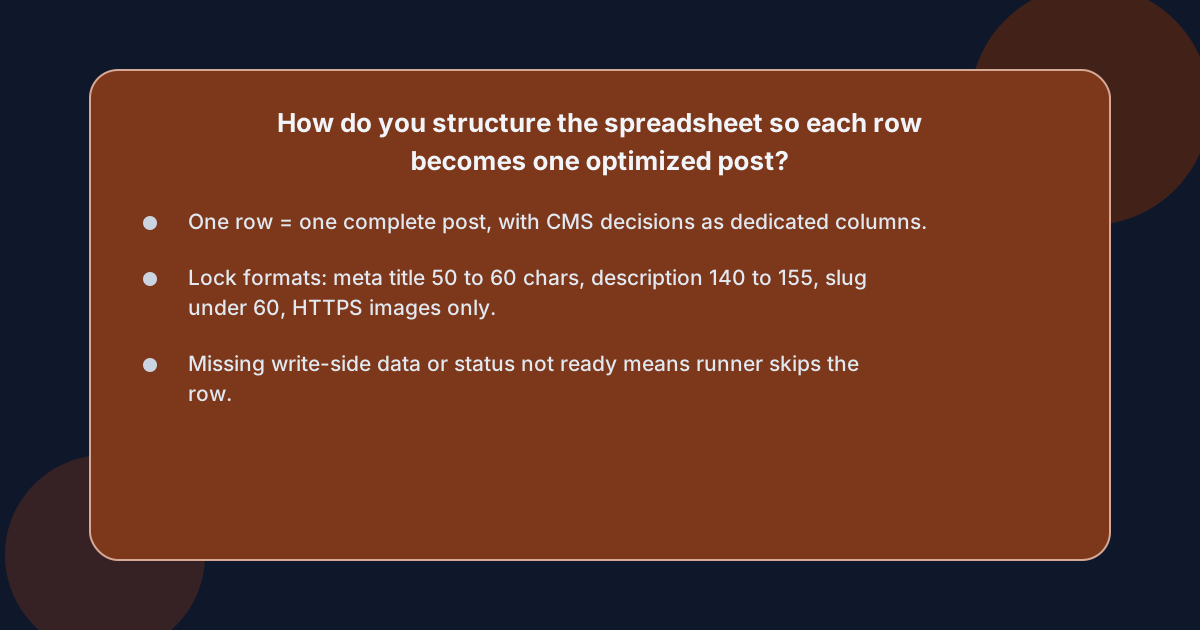 Each row should represent one post end to end. Every decision a CMS needs should already be made in a dedicated column, so the runner can read it like a record rather than re-deriving it from prose.
For google sheets to wordpress blog automation in particular, the columns that earn their place are short and predictable. Aim for the following minimum, written so a non-technical editor can read them:
- Target query — the search the page has to win, written the way people actually type it.
- Search intent — informational, commercial or transactional, since intent decides the shape of the post, not the word count.
- Slug — the URL tail, lowercase, hyphenated, no stop words.
- Meta title and meta description — written for the search result, length-checked against the CMS limits.
- Outline — three to six headings, often stored as a pipe-separated or newline-separated string.
- Internal links — at least one pointing at a page your site already serves and one pointing at a page you sell from.
- Cover image — either a Drive file ID, a Media library ID, or a public URL the runner can fetch.
- Status, publish date, post ID, live URL — the columns the runner writes back so the row stays auditable.
A useful trick is to lock every column's format: meta title at 50–60 characters, meta description at 140–155, slug under 60 characters, image URL HTTPS-only. A short Data-validation rule in the sheet catches the most common breaks before they cost an API call.
Which columns does the runner actually need?
The runner treats the row as a payload, so it needs three groups of columns in this exact order:
- write-side columns it reads (target query, intent, slug, meta title, meta description, body, internal links, image)
- trigger columns (status, publish date)
- write-back columns (CMS post ID, live URL, last sync timestamp, last error)
If a row is missing anything in the first group, the runner skips it; if the status is anything other than "ready", it does not pick the row up.
This split also makes scaling a small team possible: a writer or editor owns write-side columns, the runner owns the write-back columns, and trigger columns sit between them as a contract. The same contract is the basis of an SEO content workflow a small team can actually run, since five people rarely have time to review thirty drafts a month in a chat thread.
How do the three publish paths (WordPress REST, Webflow CMS API, Shopify blog API) differ in practice?
The three publish paths look similar on paper — each one exposes an endpoint that creates a post or article from a JSON payload. They differ in three practical ways: how they authenticate, what content model they expect, and how they treat rate limits and idempotency.
WordPress is the most permissive. The REST API lives at /wp-json/wp/v2/posts, accepts standard JSON, and authenticates with an application password or a plugin like Application Passwords. Meta tags live in custom fields (or in a plugin such as Yoast or RankMath), which means the runner has to know which plugin your site uses and write to the right keys. Featured images are uploaded as media first, then referenced by ID, in that two-step order. Rate limits are loose for a self-hosted site; the practical limit is the timeout on your runner, not a per-minute cap.
Webflow's CMS API is stricter but cleaner. The endpoint is site-scoped, you authenticate with a site token, and content lives in a Collection you have already defined in Webflow — usually a "Blog Posts" collection. The catch is that every field you want to write has to exist in that collection before your runner talks to the API, including SEO fields, which most Webflow templates do not provide by default. Once the collection has the fields, the JSON payload is straightforward, and Webflow handles image hosting from a CDN-friendly URL. Rate limits are documented (around 600 requests per minute per site), which is plenty for normal publishing.
Shopify's blog API is the most opinionated. The endpoint is /admin/api/{version}/articles.json, you authenticate with a private app access token, and Shopify's content model is hierarchical: each article belongs to a blog, which belongs to a shop. SEO is handled via the metafields namespace and (in Online Store 2.0 themes) SEO fields are first-class, but they are still optional — leaving them unset is technically valid, which is exactly why csv to shopify blog import workflows tend to leak meta tags if the column mapping is not enforced. Rate limits use Shopify's leaky-bucket model, and bulk publish jobs must obey it or they get temporarily throttled.
Which platform is the easiest to automate to first?
If you are starting from scratch and want the lowest-friction no code AI content publishing pipeline, WordPress is the fastest to a working row-to-post loop. Pair the Application Passwords plugin with a no-code runner such as Zapier, Make, or n8n.
WordPress accepts a generous payload over a public endpoint and does not require you to predefine a content model. Webflow comes second once the collection is set up. Shopify comes last because of the blog-article hierarchy and the metafield indirection.
How do you carry meta tags, schema, internal links and images through the automation without breakage?
You carry meta tags, schema, internal links and images through the automation by treating each as a first-class column in the sheet. Map each to the CMS field the runner writes to, then verify it on the live URL right after publish. The CMS will accept a half-built post and return a 200, and that is exactly how meta tags get lost.
For meta tags, the rule is simple: every SEO field on the live page has a column in the sheet, and the runner writes that column's value to the exact field the CMS exposes — not to the body, not to the post content, not to a hidden paragraph. On WordPress this means writing to the Yoast or RankMath fields, on Webflow to the collection's SEO fields, on Shopify to the SEO metafields or to the article's first-class SEO fields. A short post-publish check that GETs the live URL and confirms the meta title and description are present in the raw HTML catches every misrouting in one place.
For schema, the sheet itself is not where schema lives — schema is generated by the post's content, not stored as a row. The runner has two options: emit the JSON-LD itself in the post body, or rely on the CMS plugin to emit it. Either way, the sheet should record what schema is expected per post type (Article, FAQPage, Product, HowTo), and the post-publish monitor should confirm the script tag is in the rendered HTML.
For internal links, store them as a structured column — {"anchor":"label","url":"https://…"} — rather than as inline text in the body. The runner attaches them to specific outline sections, which is how you keep an automated SEO content workflow honest about which pages each new post actually points at. A link checker that GETs every internal target after publish catches 404s from typos or deleted pages.
For images, the pipeline has to handle three cases:
- existing Media library IDs (upload once, reference by ID)
- external URLs that need uploading
- Drive/Sheet URLs that the runner has to fetch, upload and then attach
AI-generated images almost always fall into the last case, and the safest loop is to upload to the CMS first, capture the returned media ID, and only then create the post that references it.
Where does the pipeline quietly break, and what do you monitor after go-live?
The pipeline breaks in five predictable places:
- dropped meta tags
- missed image alt text
- internal links pointing at 404s
- webhook events out of order under load
- rate-limit throttling that surfaces as silent 429s
None of these look like errors at publish time, which is why monitoring has to be a written step, not an afterthought.
Monitoring after go-live has three layers. The first layer is the publish itself: a row in a "post_publish_log" sheet, written by the runner, recording status code, live URL, CMS post ID, and the timestamp. The second layer is the post-publish sweep, usually 30 minutes later, which re-fetches the live URL and checks for meta tags, the featured image, the canonical link, and at least one of the internal links. The third layer is the slow-read, at 14 and 28 days, where Google Search Console data — impressions, clicks, average position — is pulled back into the same sheet row.
That last layer is what answers whether the row earned its keep. A post that publishes cleanly and is indexed within a week but earns zero impressions at day 28 is a different problem from one that indexes slowly but climbs steadily. The sheet is what lets you tell those apart at scale.
What does the day-14 check actually look at?
A useful day-14 check pulls three numbers into the sheet:
- total impressions for the row's target query
- average position
- whether the live URL appears in the Search Console performance report at all
If impressions are zero and the URL is absent, the post is either not indexed or indexed for a different query — both fixable, but only if the sheet shows you the gap.
That same loop is what closes the full no-code bulk publish SEO articles from sheets to wordpress cycle: the sheet is the brief, the runner is the courier, and the Search Console pull is the scoreboard.
Frequently asked questions
Can I really push AI SEO posts from Google Sheets to WordPress without any code?
Yes, with a no-code runner like Zapier, Make or n8n and the WordPress Application Passwords plugin, you can read rows from a Google Sheet on a schedule, map each row to the WordPress REST endpoint, and create posts with custom fields populated for Yoast or RankMath meta tags. The non-code parts move to the sheet: validation rules for slug length, required columns for meta title and description, and a "status" column the runner reads.
Is the same pipeline usable on Webflow and Shopify?
Largely, but with three differences you have to design for: Webflow requires a CMS Collection with the SEO fields already defined, Shopify requires articles to live inside a blog and SEO to land in metafields or first-class SEO fields, and both have stricter rate limits than WordPress that the runner has to respect. The sheet structure is reusable across all three; the field mapping per destination is not.
How do I stop meta tags and internal links getting lost in the automation?
Treat every SEO field as a dedicated column in the sheet and write it to its CMS-specific field, never into the post body. Add a post-publish check that GETs the live URL and confirms each field is present in the rendered HTML. Run an internal link checker at the same time so 404s surface in the sheet, not in a Search Console report weeks later.
How often should I publish from the sheet?
Publishing frequency is governed by your ability to review, not by the runner. Most small teams running an AI content to CMS workflow no code set-up settle at two to four posts per week per language, which is fast enough to compound topical coverage and slow enough to read each draft before it goes live.